5 Best Market Data Sources for Stock Market Research and Quantitative Trading
A short guide to the 5 best market data sources for stock market research and quantitative trading, comparing Polygon, Tiingo, Nasdaq Data Link, Alpha Vantage, and Alpaca.
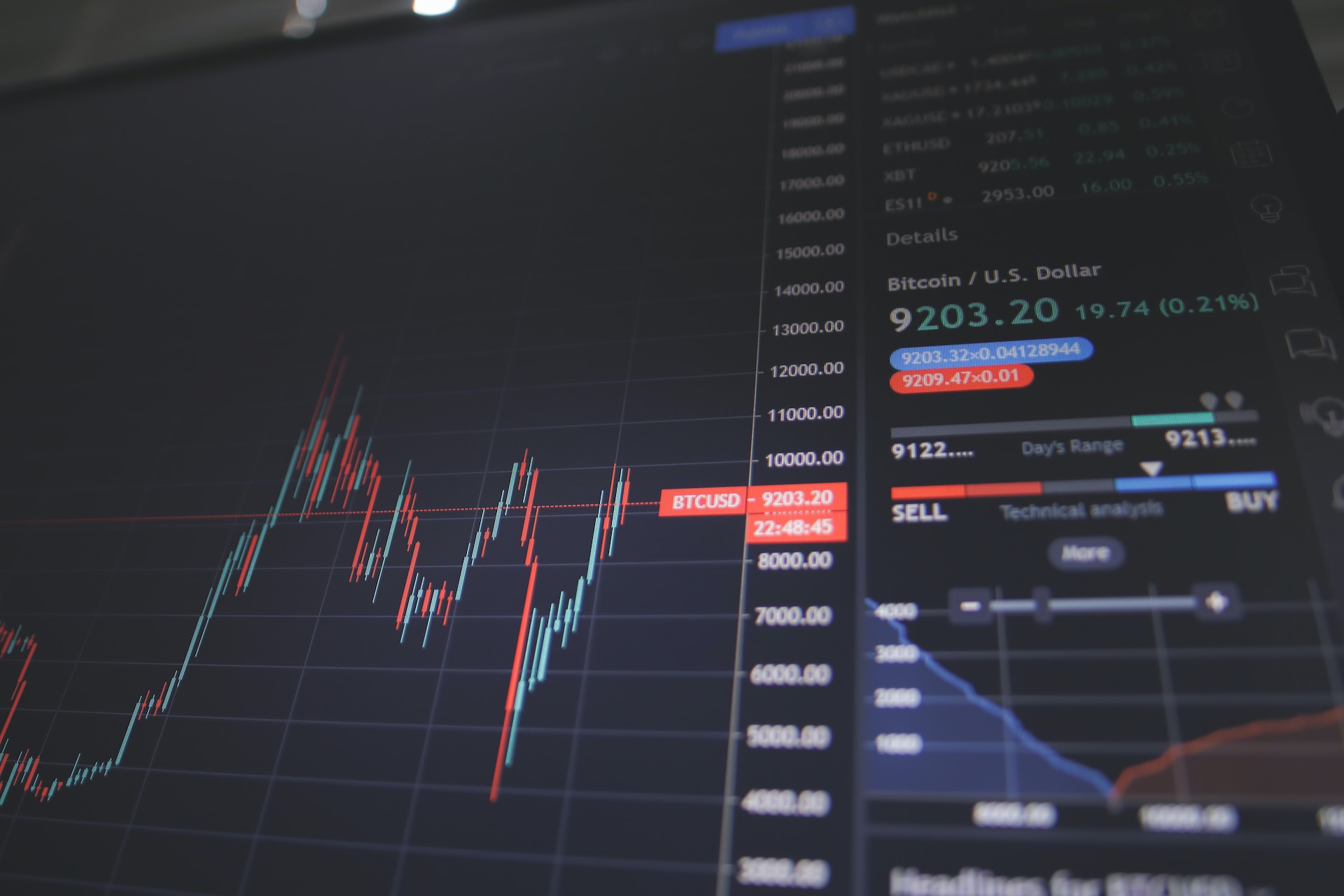
Good strategy research starts with clean, reliable data. The best source depends on whether you care most about tick-level accuracy, broad historical coverage, ease of use, or cost. These five are the strongest options for most stock-market researchers and systematic traders.
1. Polygon.io (now branded Massive.com)
Polygon is one of the best all-around choices for strategy research because it offers real-time and historical U.S. market data through REST and WebSocket APIs, including tick-level trades and quotes, snapshots, and downloadable flat files for larger backtests. That makes it especially useful when you need both live trading inputs and large historical datasets in the same workflow.
2. Tiingo
Tiingo is a strong research-oriented source when you want clean end-of-day data, fundamentals, news, and IEX intraday coverage without a heavy integration burden. It is especially practical for factor research, portfolio models, and academic-style backtesting where data cleanliness often matters more than ultra-low latency.
Nasdaq Data Link is one of the best platforms for broad historical research because it aggregates many datasets and supports multiple delivery methods, including REST, streaming, Python, R, and Excel. It is well suited to quants who combine price data with macro, alternative, or fundamentals datasets instead of relying only on raw market feeds.
Alpha Vantage remains a good entry point for individual researchers and smaller projects. It provides real-time and historical data across stocks, ETFs, indices, FX, commodities, fundamentals, and technical indicators through simple APIs and spreadsheet-friendly access. It is not usually the first pick for institutional-grade execution systems, but it is very useful for prototyping and lightweight research pipelines.
Alpaca is a strong choice if your research stack is closely tied to live algorithmic trading. Its market data API covers real-time and historical equities, options, and crypto, and its docs emphasise live streaming plus developer-friendly integration with trading workflows. That makes it attractive for people who want research, paper trading, and execution infrastructure close together.
Which one is best?
Overall from my experience, I recommend the following:
Best overall for quant trading: Polygon / Massive.
Best for clean research workflows: Tiingo.
Best for broad dataset discovery: Nasdaq Data Link.
Best for beginners and prototypes: Alpha Vantage.
Best for research-to-execution pipelines: Alpaca.
I would suggest starting out with Tiingo or Alpha Vantage if your on a budget, then move to Polygon/Massive when your models need deeper intraday coverage, and use Nasdaq Data Link when your edge depends on combining market data with other datasets. Alpaca is most compelling when your trading stack is built around its ecosystem.